Substituting in various classrooms gives me great insight into different ways that iDevices can be used in the classroom. Today, read naturally students were using QuickVoice to read their passage and then listen to themselves read it back as they monitor their own progress! It is interesting to watch these eager minds at work as they engage in learning with iDevices. I am impressed that each device seems to be picking up mainly just their assigned student even though there are four students in the same small room (10x20 ft) reading at the same time! Very cool!
Another group was working on Accelerated Math and used Educreations as their scratch paper! Although a very simplistic use--a very engaging and effective one for kids! By the way, Educreations is one of my favorite apps! Love to see it being used in the classroom!
Tuesday, October 1, 2013

Thursday, August 22, 2013
Math problem of the week!
After reading a blog entry today about interactive math journals (see Runde's Room) I ran across an introduction to this amazing math problem website! Waterloo Mathematics is the site. This site provides a problem of the week for grades 5 thru 12th grade. It is free to sign up and the questions are emailed to you each week. You can also go back in the archive for previous questions. Each question is aligned with math strands and has curriculum resources to go with it!
Friday, August 9, 2013
App: Stop light for Noise
 Silent Light - Classroom Timer and Decibel Meter is a new app from the folks at Top Storey Apps. It was written by a pair of teachers for teachers to use in the classroom or home school environment. The premise behind the app is simple -- it uses the microphone on the iOS device to detect background noise and rewards children when they are quiet for a set amount of time.
The Silent Light app lets you select a target noise level that is compatible with a range of activities. When it is test-taking time, you can set the app to the lowest "hear a pin-drop" level of quietness. If you are holding small group discussions, you can raise the noise level to allow quiet talking, but not loud outbursts. The app rewards children with points for being quiet and you can configure the time, from 1 to 15 minutes, it takes for a child to earn a point. The app can be used on an iPad, iPhone or iPod touch that is placed on a student's desk. If you are using one device per classroom, you can also output the display to an HDTV using an Apple TV or a compatible digital AV adapter.
Silent Light uses a very familiar traffic light graphic to visually represent the noise level in the classroom. Red is too loud, orange is getting loud and green is within the level of quiet needed for an activity. A timing meter counts off the minutes and changes color to give kids real-time, feedback about their level of noise. A rewards counter keeps track of the points that awarded for times of quiet activity. When you are done with your quiet time, you can start over by changing the activity title and resetting both the timer and the rewards counter.
I tested Silent Light in my own home and found that the app works exactly as described. It picked up ambient noise and reported it as loud based on the noise level that I selected. When I selected the ultra-quiet pin drop level, even quiet whispering between two or three children triggered an orange warning light. When I turned the level up to group discussion, my children were allowed to talk, but not laugh or yell without the app warning them they needed to quiet down.
Warnings are visual only -- the timing meter turns red and the traffic light turns orange or red. There is no alert or other audible cue that the noise level is too loud. (According to the developer, there is a xylophone ding that should chime when the noise gets too loud). The only audible in the app is a cash register noise that chimes when a new point is added to the coffer. This noise can be turned off by lowering the volume on the phone.
Silent Light - Classroom Timer and Decibel Meter is an effective visual tool for classroom or home school teachers who want to reward children for their quietness during activities. The Silent Light app is available from the iOS App Store for US$3.99.
6 LA website for use in the classroom!
6 Helpful Language Arts Websites for Teachers

- Funbrain by Pearson - Play fun and educational games designed for specific grades. Have your students learning without even realizing it. Not only for Language Arts, these games extend to other subjects from P.E. to science.
- StoryBird - Allow students to create and illustrate their own stories with wonderful tools and editing. You can easily issue assignments, review and grade work, and share their stories in class with this highly acclaimed site/app.
- ShelSilverstein.com - The official website of the celebrated author. With either high or low bandwidth, depending on your school, you can employ unique games/puzzles, printables and downloads in the classroom. It even has a section for parents/teachers explaining how to use the site.
- Teachers by Scholastic - For a variety of useful printables for the language arts classroom, check out this site by Scholastic. With organizers, comprehensive worksheets, story element identification sheets and assessments for your students, you'll be happy to find this awesome tool.
- Grammar Ninja - Fast-paced and simple, Grammar Ninja has kids identify proper grammar in a fun and effective way. Wrong answers are explained at the bottom after the word is theatrically blown up and their score is shown at the end, including penalties for errors. Great practice for younger children and helpful reminders for older students.
- ReadWriteThink - This site includes lesson plans, interactives, apps, and printouts divided by recommended grades. Each lesson plan has an overview, standards, a how-to-prepare section, resources, and comments.


Publish With Me
I have really enjoyed working in a collaborative environment--Titan pad is one that is used regularly during the SimpleK-12 presentations. Apparently this new one PublishWithMe is free and doesn't require a registration! Let's try it out!
Have multiple Google accounts...want them in one spot?

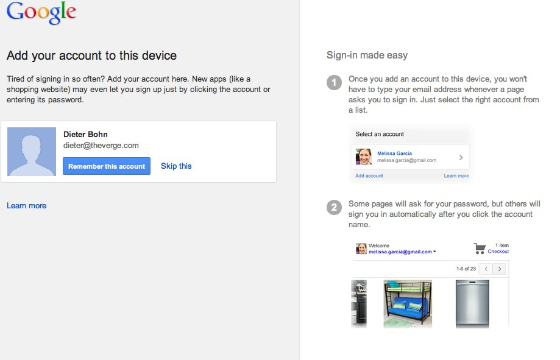
Google has quietly launched a new feature to help users who have multiple Google accounts called "Account chooser." First noticed by The Next Web on the Gmail login interface, the new feature displays a list of multiple accounts instead of just one — which significantly reduces the number of clicks required to switch accounts. To manage the new feature, you can go to https://accounts.google.com/AccountChooser to add new accounts to your list or remove them. Oddly, you must be signed out of at least one of your Google accounts to surface the "Edit" button that allows you to remove accounts from your list. Google has previously done some work this year to make managing multiple accounts easierand this solution makes it better still. However, even with the new Account chooser you'll still be presented with a password request on some pages but not on others — so there's still work to be done.
Sunday, June 2, 2013
Mind Maple--Concept Mapping Tool

Water1der App

Water1der App. Develop groundwater awareness withe this fun trivia app from the Groundwater Foundation. Available for iPad, the app features questions presented in conservation, irrigation, water cycle, watershed, pollution prevention, and other categories. For use with middle level and older students the app keeps things lively by using various game-playing formats (e.g., multiple choice, true/false, matching scrolling, tough and drop), requiring players to do a lot of dragging, shaking, and tapping on their devices. Learn more at www.groundwater.org/water1der.html.
In the process of downloading it and will add to this post after playing with it!
EarthViewer App

Have you ever wondered what the Earth looked like 400 million years ago? With EarthViewer, a new interactive app for iPad, users can explore the Earth's history with the touch of a finger by scrolling through 4.5 billion years of geological evolution. Developed by Howard Hughes Medical Institute's BioInteractive team, the app tracks the planet's origin, and explore the Earth's biodiversity over the last 540 million years. It combines visual analysis with hard data. The app can help high school and college students make connections between geological and biological change. Learn more at http://bit.ly/Zg4Gyd.
I can't wait to see how people use this app and what it leads to. If you have ideas on how to use the app please leave a comment! Thanks for reading!
Thursday, May 9, 2013
Filtering Gmail
How to Filter your Gmail--101
The idea behind filtering your Gmail is to prevent your inbox from being cluttered with random assignments and correspondence. This works great in a classroom in which there are several periods taught and multiple students mass sending you assignments. This can also come in handy in your normal, everyday life--especially if you are involved in a lot of different organizations and are flooded with emails!
Here are the directions for setting up folders to sort your incoming mail:
1. Create a new label by going to your mail settings and look at the list of commands on the left-hand side (where you commonly click to look at your Inbox or Sent Mail)
2. Select Create New Label from the list (you may have to select the word More in order to see additional options)
3. Create a new label such as OSTA for the organization or P2 for Second Period.
4. At the top there are a list of tabs you can click on; click on the Filters tab
5. Click Create Filter with this Search
6. In the pop-up window fill in the subject line with something simple your colleagues or students can easily remember like osta or p2 so it goes into the OSTA or P2 file
7. Select the Skip the inbox button and the Apply the Label button. Be sure to select the label you would like (this should be the folder you created earlier) and select Create Filter
8. Now when you instruct others to use your filter you must remind them to include a space after the new filter in and then their subject. For example, the subject line for an email designated for the OSTA file might look like this: "osta every flavor beans lab" or for the classroom it might look like this: "p2 lab 3"
Subscribe to:
Comments (Atom)